
This will be a step-by-step guide on how to use OBS Replay Buffer feature for those who need a less resource-intensive "Bodycam" option
Note: This guide will assume you have already set up a scene with your gameplay video and audio source. If you haven't already, please do so before continuing.
If you do not already, download OBS Studio from obsproject.com
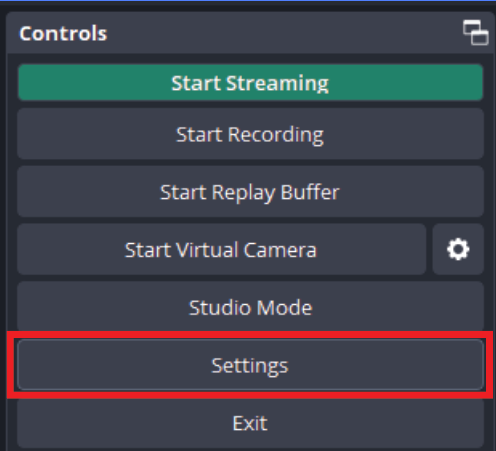
1. Upon installation, open the settings tab
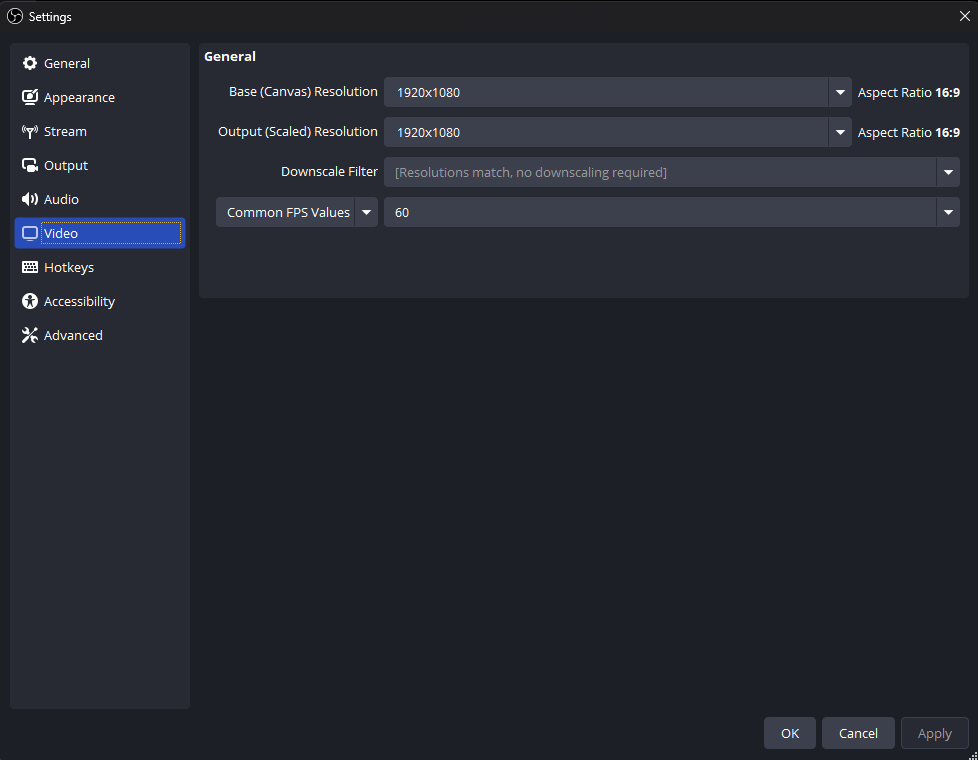
2. Navigate to the Video tab on the right-side ledger, here you can configure your canvas resolution, and FPS values, a higher resolution will result in more storage used, so ensure that you have adequate space.
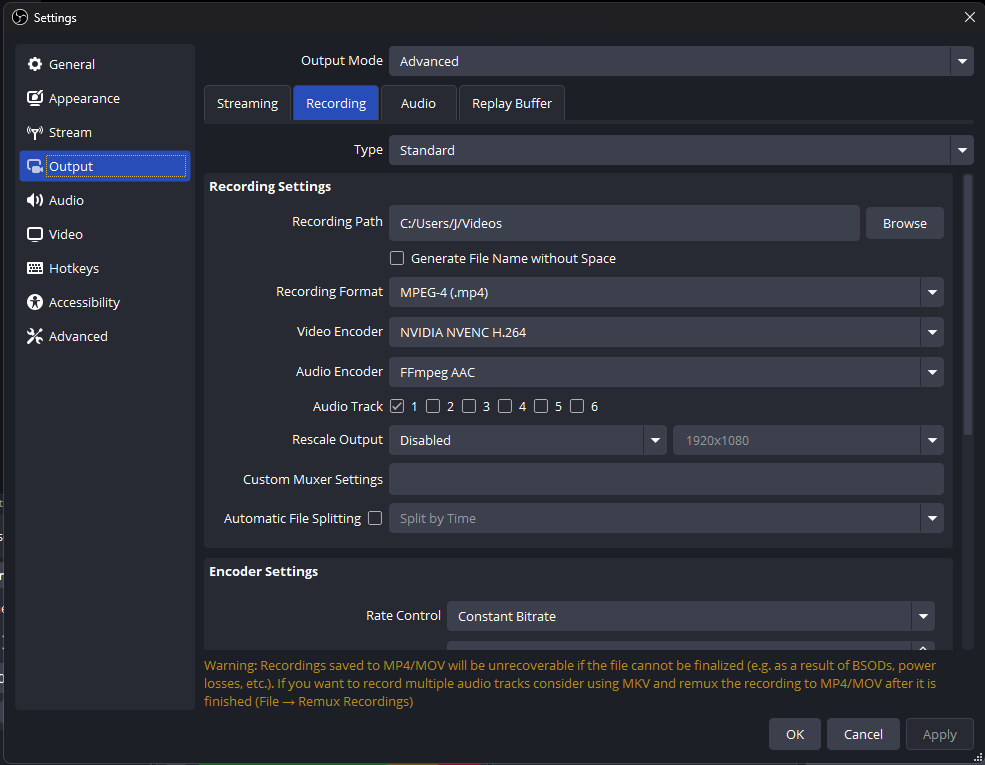
3. Once you have completed this, navigate to the Output menu, switch the menu from Simple to Advanced and move to the Recording tab, here you can change the following options
- Output path (I would make a folder dedicated to OBS Captures for organization sake within your videos folder)
- Format (this is best kept at .mp4 for usage ability)
- Video Encoder (should you want to use something separate from your default)
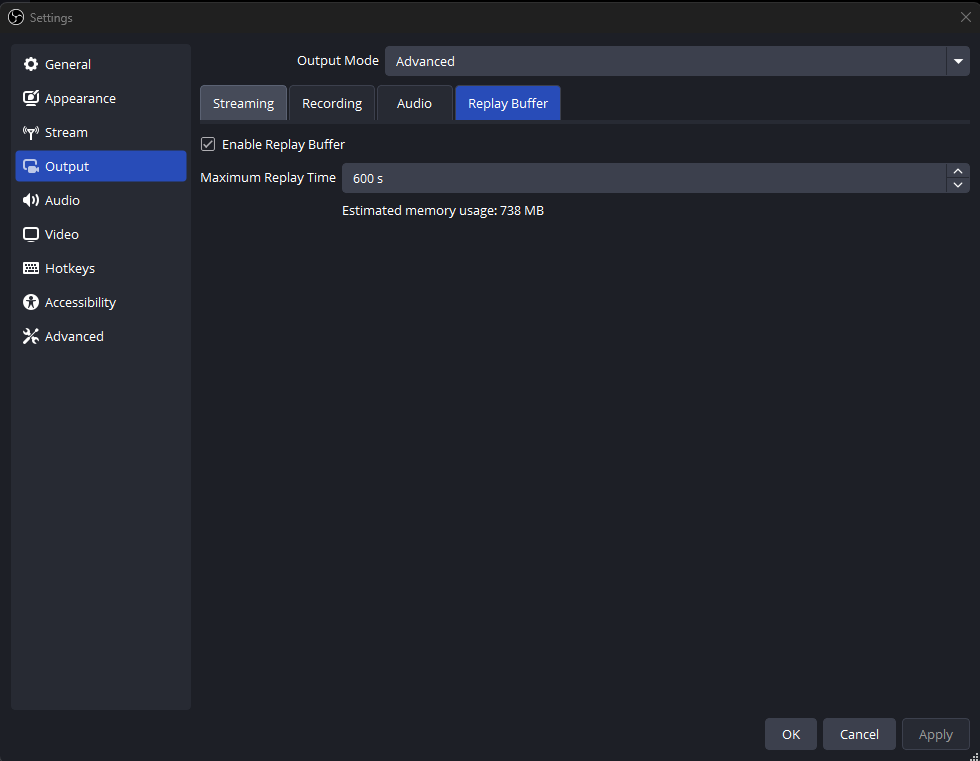
4. Move over to the Replay Buffer Tab, here you'll want to check the Enable Replay Buffer box, and set a time in seconds you want to flash-record on command
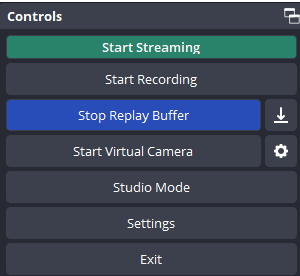
5. When you're finished the setup and are in-game, make sure you toggle Start Replay Buffer, this will begin caching the last X amount of gameplay footage (based on the time set in Step 4)
In the event you need to save a clip, you can:
- Set a hot-key in Settings > Keybinds > Replay Buffer which will automatically dump your clip to its destination
- Click the arrow next to the Replay Buffer button shown
That's it! If you have issues, find me in my Discord or in my Twitch chat